In December 2026, we plan to publish new Crossref Member Practices which will set out the standards we expect all Crossref members to meet. From August to October 2026 we are consulting with our members on a draft of these Member Practices. This blog provides the background to this, and explains how you can share your views.
The Crossref community in India is as diverse as the region that it represents, comprising 1605 members, 11 sponsoring organisations, and 5 ambassadors, who between them cover the length and breadth of this country. Between November 2025 and March 2026, we organised three webinars focused on supporting this community with best metadata and publishing practices. We collaborated with the Directory of Open Access Journals (DOAJ) and the Committee on Publication Ethics (COPE) to embed understanding of metadata’s role in the greater context of publishing integrity.
PID strategies are being written around the world right now, and the decisions being made will shape the scholarly record for decades. After 25 years running open scholarly infrastructure—now on behalf of 25,000 members in 167 countries—Crossref has an informed perspective on what those decisions should ideally rest on. Today we’re setting it out in our first position paper: Persistent identifiers in research infrastructure policy: the need for a holistic approach. You can read it online or download the PDF; it’s a 16-minute read.
Research is rarely limited to a single contributor performing a single role. Behind every research output are people contributing in various ways: software development, data analyses, methodology design, and much more. Often, the same person contributes in several of these ways. Until now, Crossref metadata could only capture part of that picture, but this is changing with Schema 5.5.
This section is for Similarity Check account administrators using iThenticate 2.0 through the browser, and describes how you can manage exclusions within your account settings..
Not sure if you’re using iThenticate v1 or iThenticate 2.0? More here.
Not sure whether you’re an account administrator? Find out here.
Exclusions
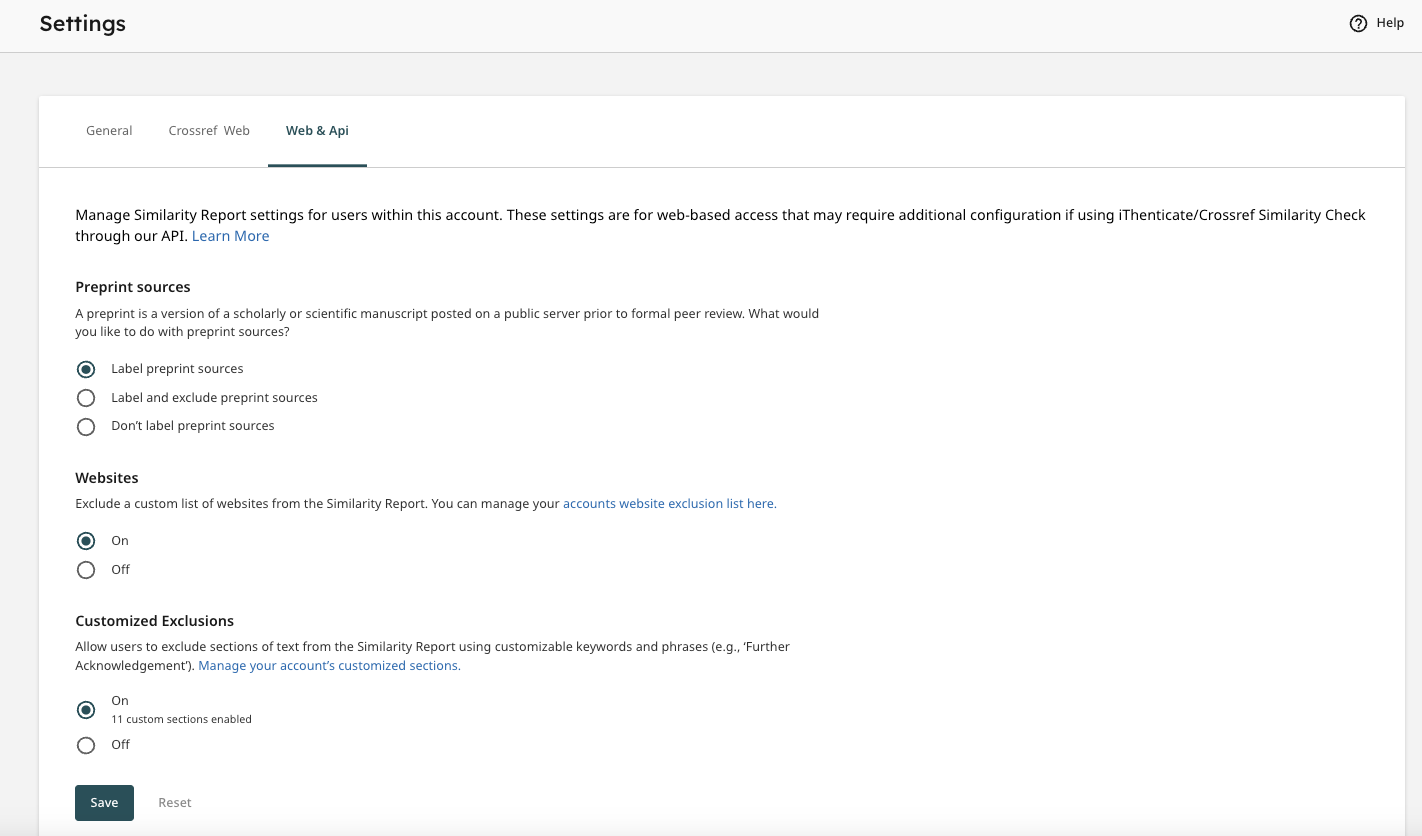
If you want to exclude items from your Similarity Report results, you can do this by clicking on Settings in the left hand menu in iThenticate 2.0 homepage. There are two tabs where you can change different items - one is labelled Crossref Web, and the other is labelled Web and API. Here are the various items you can exclude.
Preprint Label and Exclusions
iThenticate 2.0 introduces a new feature which will automatically identify preprint sources within your Similarity Report. This will allow you to easily identify preprints so your editors can make a quick decision as to whether to investigate this source further or exclude it from the report.
In order to start using this feature you will need to configure it within the iThenticate settings by logging directly into your iThenticate account. You can find instructions on how to configure this feature in Turnitin’s help documentation.
You also have the option to automatically exclude all preprint sources from reports. All excluded preprints will still be available within the Similarity Exclusions panel of your Similarity Report and can be reincluded in the report.
Further details of how preprints appear within the Similarity Report can be found in Turnitin’s help documentation .
The Website Exclusions setting will allow you to automatically exclude all matches to specific websites. Instructions on how to turn on and configure this feature can be found in Turnitin’s help documentation.
This feature will only exclude matches in the Internet repository. If a journal website is added to the list of excluded websites then all pages which have been crawled and indexed into Turnitin’s Internet repository will be excluded. However, journal articles from that journal which appear in the Crossref repository will not be excluded.
This feature will apply to all submissions made to the iThenticate account; including all web submissions and submissions made through any integration.
All excluded matches will still be available within the Similarity Exclusions panel of your Similarity Report and can be reincluded in the report. Further details of how these exclusions will appear can be found in Turnitin’s help documentation.
Customized Exclusions
A new feature in iThenticate 2.0 is Customized Exclusions. The Customized Exclusions setting allows administrators to create sections of text that can be excluded from the Similarity Report. Administrators can tailor these keywords and phrases to best meet the needs of their organisation (for example, ‘Further Acknowledgments’).