In December 2026, we plan to publish new Crossref Member Practices which will set out the standards we expect all Crossref members to meet. From August to October 2026 we are consulting with our members on a draft of these Member Practices. This blog provides the background to this, and explains how you can share your views.
The Crossref community in India is as diverse as the region that it represents, comprising 1605 members, 11 sponsoring organisations, and 5 ambassadors, who between them cover the length and breadth of this country. Between November 2025 and March 2026, we organised three webinars focused on supporting this community with best metadata and publishing practices. We collaborated with the Directory of Open Access Journals (DOAJ) and the Committee on Publication Ethics (COPE) to embed understanding of metadata’s role in the greater context of publishing integrity.
PID strategies are being written around the world right now, and the decisions being made will shape the scholarly record for decades. After 25 years running open scholarly infrastructure—now on behalf of 25,000 members in 167 countries—Crossref has an informed perspective on what those decisions should ideally rest on. Today we’re setting it out in our first position paper: Persistent identifiers in research infrastructure policy: the need for a holistic approach. You can read it online or download the PDF; it’s a 16-minute read.
Research is rarely limited to a single contributor performing a single role. Behind every research output are people contributing in various ways: software development, data analyses, methodology design, and much more. Often, the same person contributes in several of these ways. Until now, Crossref metadata could only capture part of that picture, but this is changing with Schema 5.5.
To work out which version you’re on, take a look at the website address that you use to access iThenticate. If you go to ithenticate.com then you are using v1. If you use a bespoke URL, https://crossref-[your member ID].turnitin.com/ then you are using iThenticate 2.0.
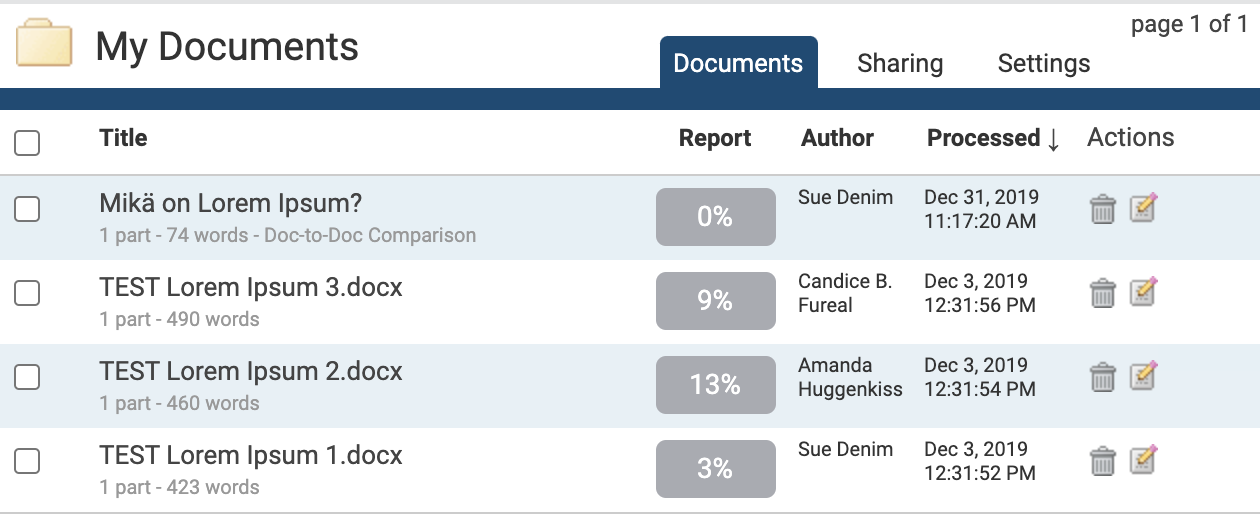
Within a folder, the Documents tab shows all the submitted documents for that folder.
Each document submitted generates a Similarity Report after the document has been through the Similarity Check. If more documents are present than can be displayed at once, the pages feature will appear beneath the documents - click the page number to display, or click Next to move to the next page of documents.
zip file upload - to submit a zip file containing multiple documents, up to a maximum of 100MB or 1,000 files. Larger files may take longer to upload
cut & paste - to submit text directly into the submission box. Use this to copy and paste a submission from a file format that is not supported. This method supports plain text only (no images or non-text information)
iThenticate currently accepts the following file types for document upload:
Microsoft Word® (.doc and .docx)
Word XML
plain text (.txt)
Adobe PostScript®
Portable Document Format (.pdf)
HTML
Corel WordPerfect® (.wpd)
Rich Text Format (.rtf)
Each file may not exceed 400 pages, and each file size may not exceed 100 MB. Reduce the size of larger files by removing non-text content. You can’t upload or submit to iThenticate files that are password-protected, encrypted, hidden, system files, or read-only.
.pdf documents must contain text - if they contain only images of text, they will be rejected during the upload attempt. To check, copy and paste a section of the .pdf into a plain-text editor such as Microsoft Notepad® or Apple TextEdit®. If no text is copied over, the selection does not contain text.
To convert scanned images of a document, or an image saved as a .pdf, use Optical Character Recognition (OCR) software to convert the image to text. The conversion software can introduce errors, so manually check and correct the converted document.
Some document formats can contain multiple data types, such as text, images, embedded information from another file, and formatting. Non-text information that is not saved directly within the document will not be included in a file upload, for example, references to a Microsoft Excel® spreadsheet included within a Microsoft Office Word® document.
Use a word-processing program to save your file as one of the accepted types listed above, such as .rtf or .txt. Neither file type supports images or non-text data within the file. Plain text format does not support any formatting, and rich text format allows only limited formatting.
When converting a file to a new format, save it with a different name from the original, to avoid accidentally overwriting the original file. This is especially important when converting to plain text or rich text formats, to prevent permanent loss of the original formatting or image content of the file.
Page maintainer: Kathleen Luschek Last updated: 2020-May-19