In December 2026, we plan to publish new Crossref Member Practices which will set out the standards we expect all Crossref members to meet. From August to October 2026 we are consulting with our members on a draft of these Member Practices. This blog provides the background to this, and explains how you can share your views.
The Crossref community in India is as diverse as the region that it represents, comprising 1605 members, 11 sponsoring organisations, and 5 ambassadors, who between them cover the length and breadth of this country. Between November 2025 and March 2026, we organised three webinars focused on supporting this community with best metadata and publishing practices. We collaborated with the Directory of Open Access Journals (DOAJ) and the Committee on Publication Ethics (COPE) to embed understanding of metadata’s role in the greater context of publishing integrity.
PID strategies are being written around the world right now, and the decisions being made will shape the scholarly record for decades. After 25 years running open scholarly infrastructure—now on behalf of 25,000 members in 167 countries—Crossref has an informed perspective on what those decisions should ideally rest on. Today we’re setting it out in our first position paper: Persistent identifiers in research infrastructure policy: the need for a holistic approach. You can read it online or download the PDF; it’s a 16-minute read.
Research is rarely limited to a single contributor performing a single role. Behind every research output are people contributing in various ways: software development, data analyses, methodology design, and much more. Often, the same person contributes in several of these ways. Until now, Crossref metadata could only capture part of that picture, but this is changing with Schema 5.5.
Not sure if you’re using iThenticate v1 or iThenticate v2? More here.
Not sure whether you’re an account administrator? Check here.
Manage your admin account
Manage your admin account using the Account Information tab. From here, you can make changes to your details in My Profile, set up URL filters and phrase exclusions across the whole account, and set up API access to connect your iThenticate account to your manuscript submission system.
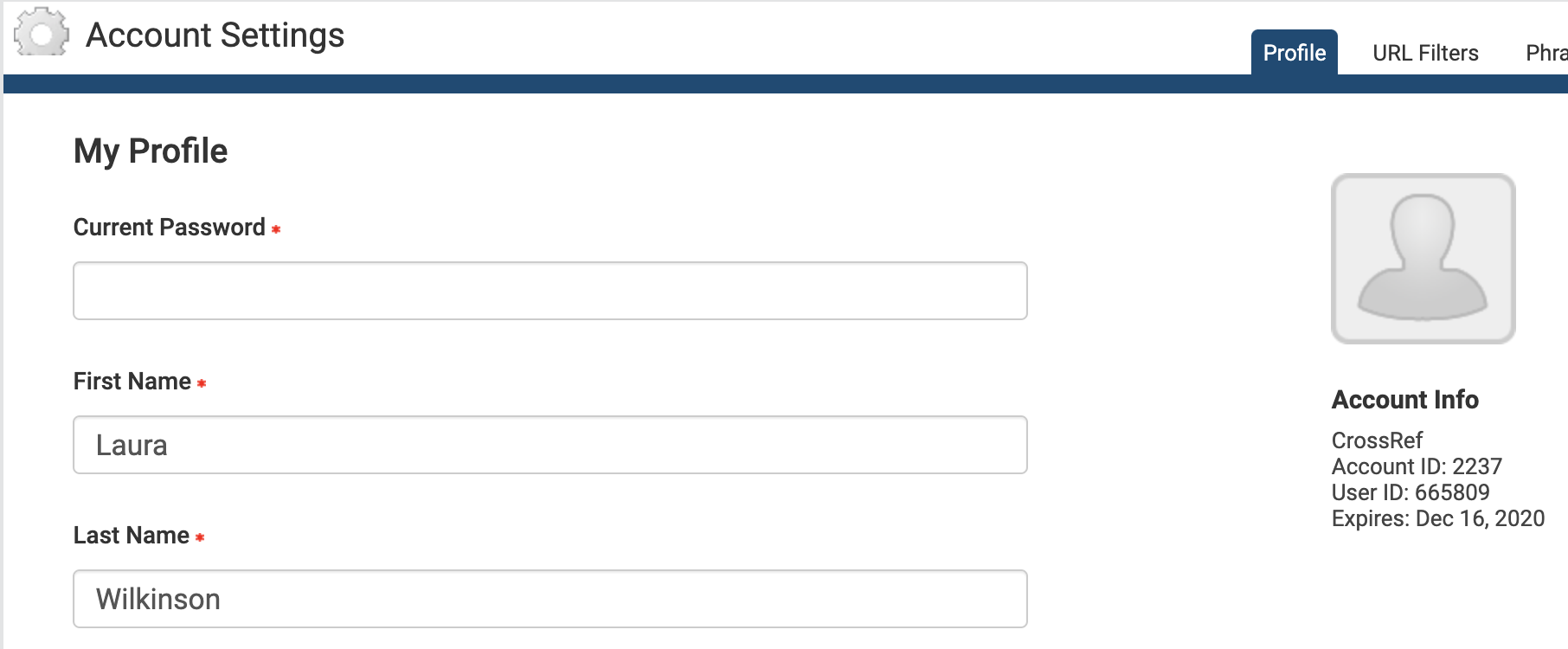
Your admin account profile (v1)
The Account Information section shows important information about your iThenticate account, including your account name, account ID, and user ID. Please ignore the iThenticate account expiry date - we’re working with iThenticate to have this removed. The iThenticate account expiry date is set to 1 June 2022 by default.
From Account Info, then My Profile, you can:
Update your profile: this form shows your current details. To make changes, enter your password in the Current Password field at the top of the form.
Change the name attributed to your account: enter the first and last name in the relevant fields. These fields are required, you cannot leave them blank.
Change your email address: enter your email into the email field. This email address is used to send you important account information, so please make sure it is valid. This field is required, you cannot leave it blank.
Add a photo to your account: click Choose File, and select the image file you want to upload.
Change your password: enter your current password in the Current Password field, enter your new password in the Change Password field, and enter it again in the Confirm Password field.
Click Update Profile to save your changes.
URL filters (v1)
This tab only appears if you are an account administrator.
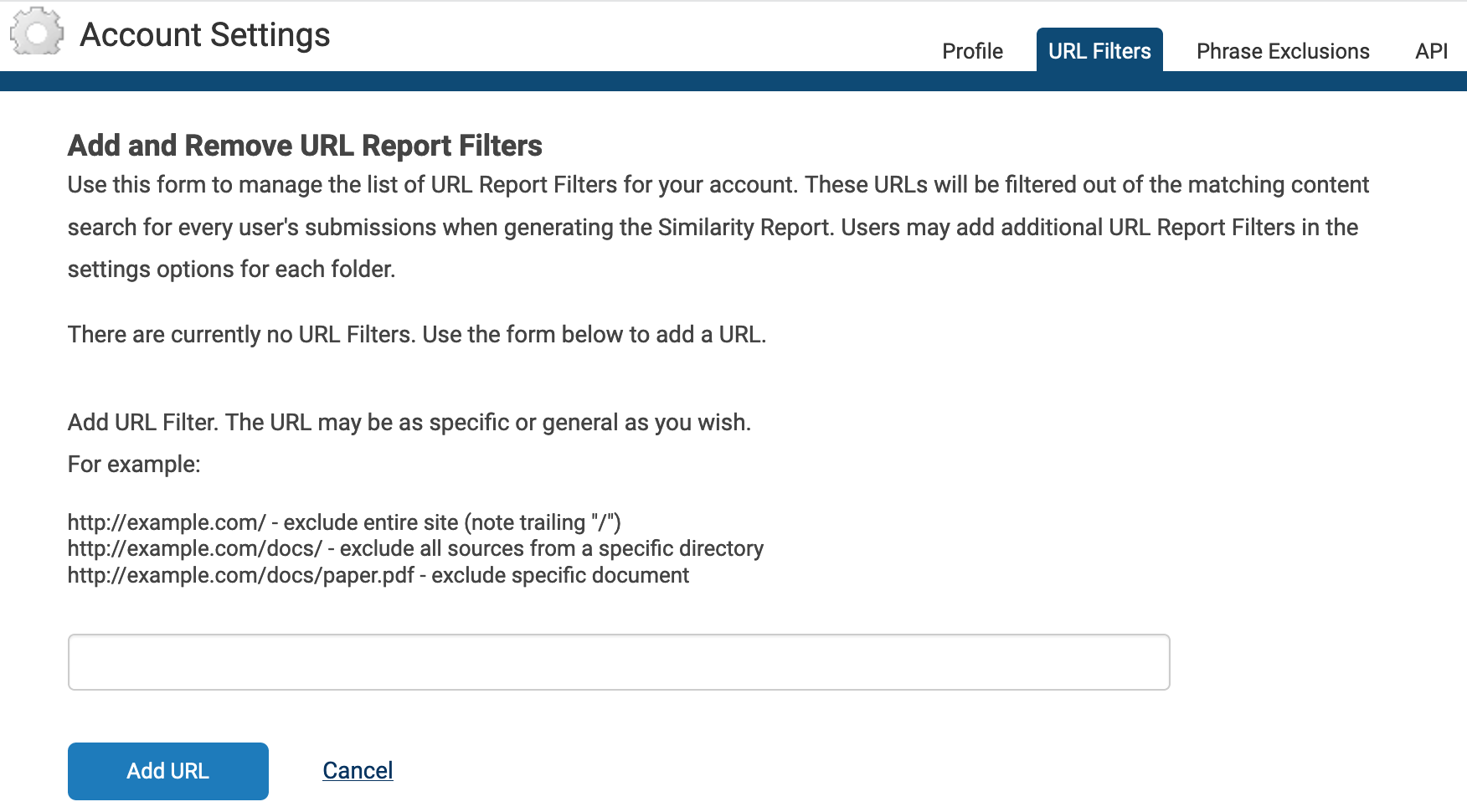
Use URL filters to apply URL exclusion filters across your account. Any URLs that you add here will be ignored when the system checks your manuscript against the iThenticate database, and it will apply across your whole account. If you want to let individual users decide which URLs to exclude instead, they can do this themselves at folder level.
Add a URL to be filtered, and click Add URL. Don’t forget to include / at the end of your URL. Click the X icon to the right of the URL to remove it.
Phrase exclusions (v1)
This tab only appears if you are an account administrator.
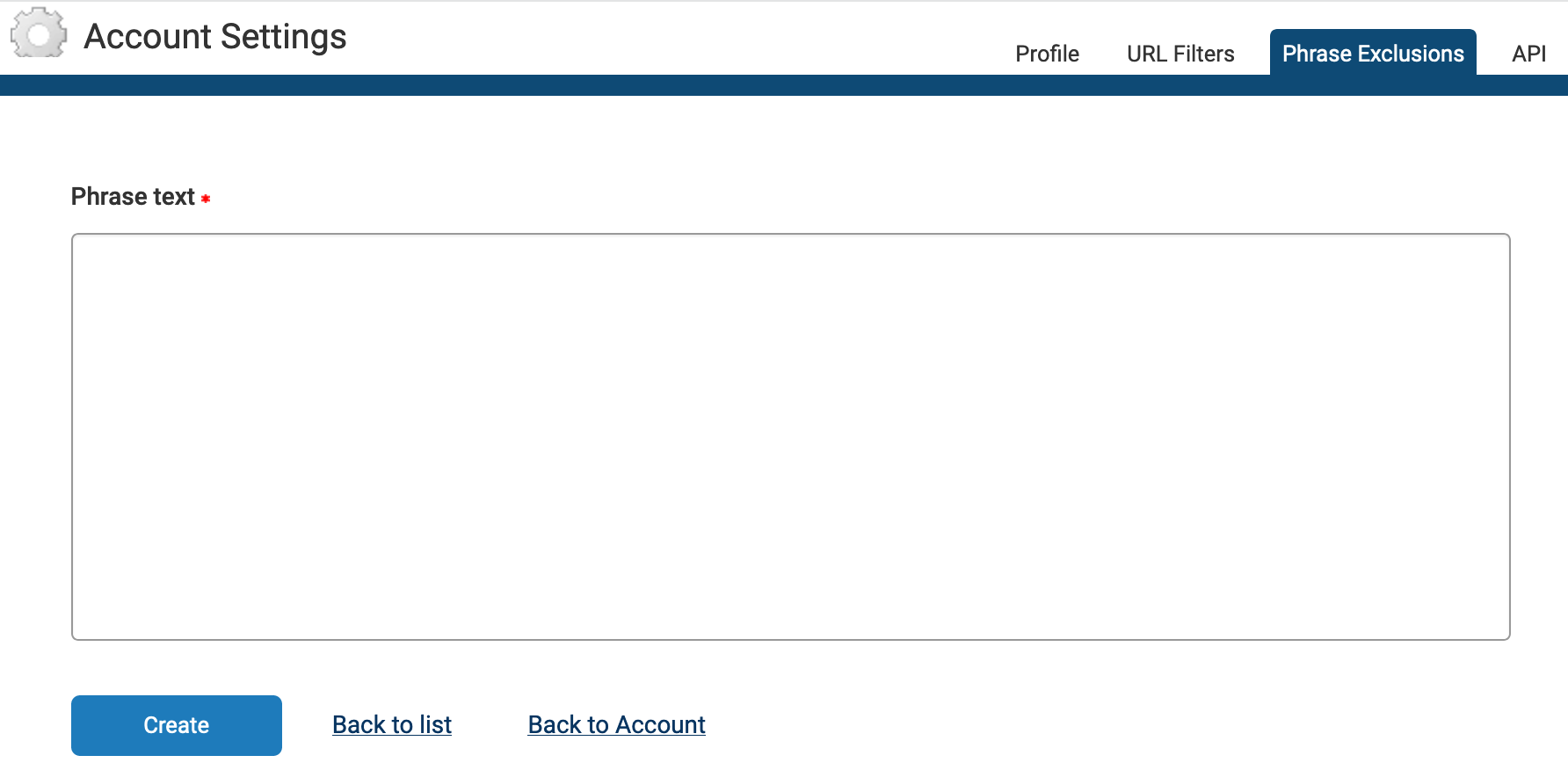
Use Phrase Exclusions to apply phrase exclusion filters across your account. Any phrases that you add here will be ignored when the system checks your manuscript against the iThenticate database, and it will apply across your whole account. If you want to let individual users decide which phrases to exclude instead, they can do this themselves at folder level.
Click Add a new phrase, enter the phrase you would like to exclude in the Phrase text field, and click Create. You can add another phrase, go Back to List, or go Back to Account.
From the main Phrase Exclusions page, you can view, edit, or remove a phrase.
Page maintainer: Kathleen Luschek Last updated: 2022-July-15